Surface Coils SNR Test
Prerequisites
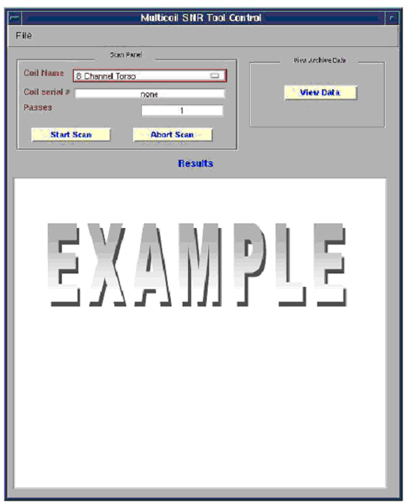
This procedure is used for several coils. Open the Coil SNR tool as shown in Figure 1, click on the square tab on the right side of the Coil selection to determine which coils are available to use with this tool.
Procedure
- Go to the Common Service Desktop -> Image Quality and select Coil SNR Test.
- Select Click here to start this tool.
- Select method for calculating SNR.
- Use the specific Coil Service manual to set up the coil and phantom for Landmark and Instructions. Select file -> Help then access the proper coil.
- Select the coil type you want to run, then select Start Scan.
See Figure 1.
Figure 1. Coil SNR tool
- After the test is complete, the tool will automatically extract and analyze the images
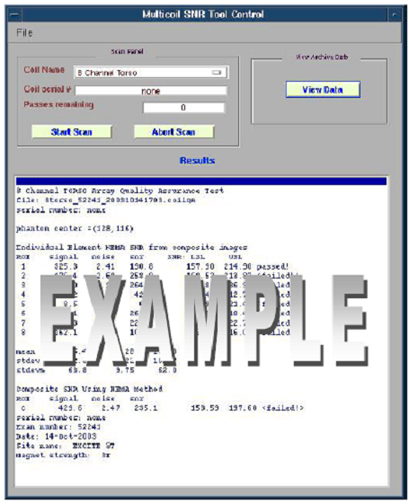
- SNR test results will appear in the results section of the tool. Each
ROI returns an individual result with a pass or fail indication. See Figure 2.note:
The USLUpper Spec Limit can be ignored. This limit will be removed in future versions of EXCITE software.
Figure 2. SNR Results
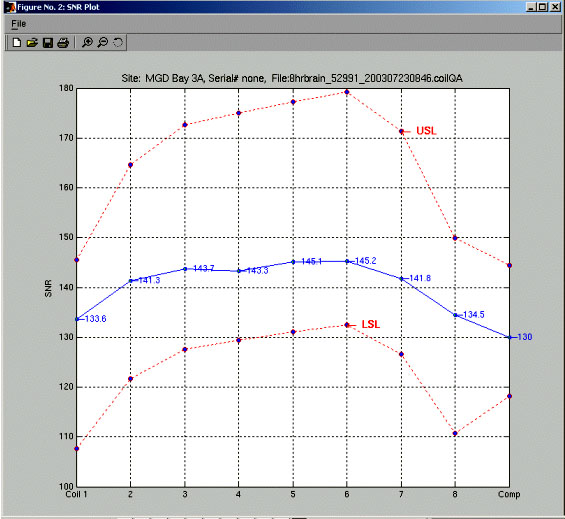
- For most coils, a plot of the results will appear in a separate window.
This also will display automatically. The Upper Spec and Lower Spec lines
appear in red with the current test results shown in blue. See Figure 3.note:
The USLUpper Spec Limit can be ignored. This limit will be removed in future versions of EXCITE software.
Figure 3. SNR Plot
- Optionally:
- To view the most recent plot data again or previous results, click on
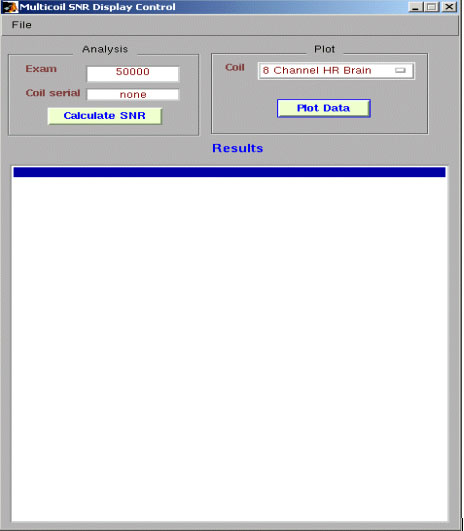
view data. The following GUI will appear. See Figure 4
Figure 4. View Data
-
- To view the most recent plot data again or previous results, click on
view data. The following GUI will appear. See Figure 4
- From this menu, select plot data and view SNR data from previous runs.
- Select the run number from Data Plot Control GUI.
- Click on Plot Data to get a graphic representation of the coil SNR. See Figure 5.
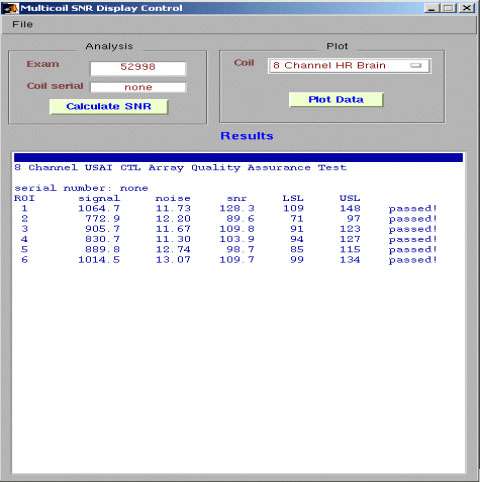
- To recalculate the most recent exam SNR results, enter the correct exam
numer in the Exam Field under the Mulitcoil SNR display control GUI, then
click the Calculate SNR button. See Figure 5 and Figure 6.
Figure 5. SNR plot data
Figure 6. SNR value data
Finalization
No finalization steps.