Keyboard Diagnostics
1 Diagnostic Link
Diagnostics>>System Function>>Global Operator Console>>Keyboard Diagnostics
Diagnostics>>Hardware Location>>Global Operator Console>>Keyboard Diagnostics
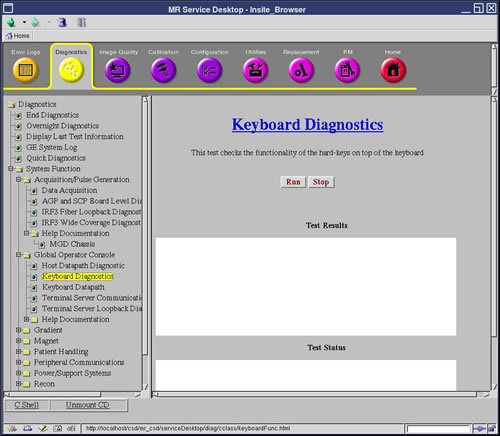
Figure 1. Keyboard Diagnostics
2 Purpose
This test checks the functionality of the hard keys at the top of the keyboard assembly. Click Run and then press one of the five (5) keys to display the name of the key in the Test Results field. Release the key to remove the name from the display.
3 Components Tested
The following keys can be tested:
-
Start Scan
-
Pause (Pause Scan on newer keyboards)
-
Stop Scan
-
Advance To Scan
-
Stop Table
4 Requirements
None
5 Test Sequence
To verify that a hard key is working, click Run and then press each key. As each key is pressed, verify that its name shows up in the Test Results field and is removed when the key is released.
-
Click Run and press the key you want to test.
-
Ensure that the name displays in the Test Results field.
-
Release the key to remove the name from the field.
6 Expected Results
Button status displays on diagnostic screen.