2160623-1 Rev 16, March 2005 MR Signa 8x/9.0/9.1 Service Methods
 Back to MR 8x
Start Page
Back to MR 8x
Start Page
1- What This CD Replaces And Why
This CD you have just received is 2160623-1 MR 8x/9.0/9.1 Service Methods. This CD is restricted to employees of General Electric Medical Systems (GEMS). Use by other than employees of GEMS is strictly prohibited.
The documentation on this Signa 8x Service Methods CD 2160623-1Rev 16 supercedes any other Signa 8x Service Methods CD 2160623-1of later revision.
The Service documentation contained on this CD is accurate and the most recent for the 8x Signa platform. The evaluation is for user interface functionality and completeness. Please see the update document on this CD "Link to Updates" for a list of documents that have changed since the last 2160623 MR Service CD.
Please though, if you find a problem with a document, take the time to write a CQA. This will insure changes in the documentation will get done.
Updates to this CD can be found at: http://3.87.118.28/optec3/common/8xdocs/mr8x.htm (You must be online with GEMS Intranet in order to use this link)
2- WHAT IS NEEDED TO USE THIS CD
The documentation on this CD is web based format. Its contents is host OS independent.
2-1 Web Browser
Your system will need a web browser. This CD has been tested on Internet Explorer and Netscape for Windows 95/98/NT, Netscape for IRIX and Sun based OS's. The Signa Host computer is preloaded with the Netscape browser. MR Service Engineering does not supply a web browser with this CD ROM for Windows based machines. .
You will also need Adobe Acrobat Reader version 4.0 or greater loaded on your system. The Signa Host computers are preloaded with Acrobat Reader.
3- STARTING DOCUMENTATION ON THIS CD
3-1 Accessing Documentation On A PC
Assuming the operating system is Microsoft Windows 95, 98 or Windows NT. Put the CD into the CD ROM drive. On the desktop taskbar, push the "Start" button and then scroll to "Run". In the edit box type, d:\setup.exe Then push the "OK" button. This will load a icon under "Program Files" called "MR 8x Service Methods". After this load, the CD can be accessed by placing the CD into the CD ROM Drive and pushing the "Start" button then scroll to "Program Files" then scroll to "MR Service Methods" then scroll to and selecting "MR 8x Documents". If there is a problem with the Setup script, make your own bookmark by opening your web browser and pointing it to the MR Service CD and opening the file mr8x.htm.
3-2 Accessing Documentation On The Signa 8x SGI Host Computer
The following works with Signa 8.3 and higher. Put the Service Methods CD into the host computers CD ROM drive. On the system open a command window. Access the system as root by typing in the command window:
su <Enter>
The system will ask for a password. The system default is: operator
Insert the Serice Methods CD 2160623 into the systems CD-ROM drive. Wait for 20 seconds or until the amber light on front of the CD ROM drive stops blinking.
On the command line now type:
mediad <Enter>
Now open Netscape Navigator by typing on the command line: netscape
The first time Netscape Navigator is opened on the system a license agreement pop up box will open. Press the <Accept> button. It will not appear again unless software is reloaded on the system.
Also the first time Netscape Navigator is opened on the system two warning pop up boxes will open saying that a directory has been created for use as disk cache. Push the <OK> button on both boxes. They will not appear again unless software is reloaded on the system.
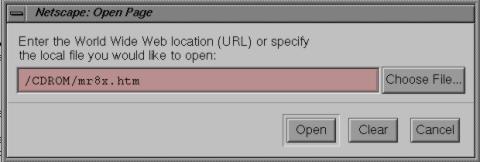
In Netscape Navigator use the system cursor to select on the menu bar, File then Open. In the Open Page dialog box, push the <Choose File> button. In the edit box that opens type: /CDROM/mr8x.htm and push the <Open> button or push the <Enter> key on the key board.
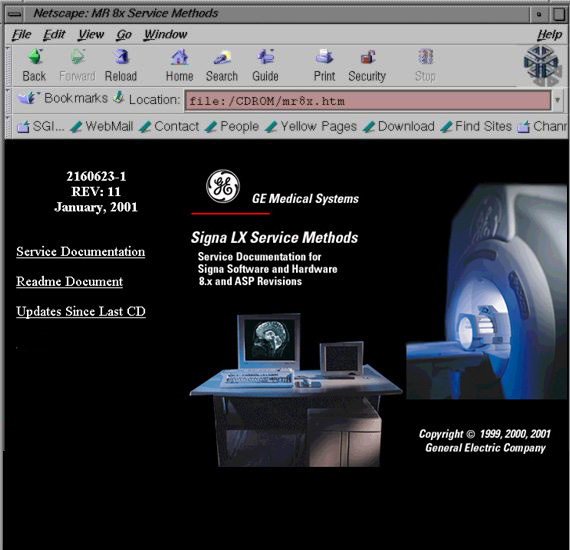
The Service CD will open in Netscape. Use it as you would on the PC.
When done, use the system cursor to select File and then Exit to exit Netscape. In the still open command window type:
cd/ <Enter>
then to remove the CD from the drive type:
eject /CDROM <Enter>
To perform a search, enter key words or phrase in the Search request area and push the search button at the bottom of the page. To understand more about dtSearch capabilities, push the help button at the bottom of the page.
This CD takes the documentation completely out of the ToolBook environment and into a Web based environment. The interface has been designed for ease of use by the MR experienced and inexperienced Field Engineer. This CD also lives on the GEMS Intranet and will be maintained with the latest documentation as they are made. Updates to this CD can be found at: http://3.87.118.28/optec3/common/8xdocs/mr8x.htm (You must be online with GEMS Intranet in order to use this link). Check it often for updates. New CDs are distributed at least quarterly.
Entering the CD Front Page
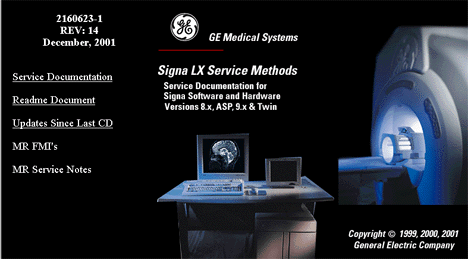
The front page contains links to the main section of the CD.
The Index Page
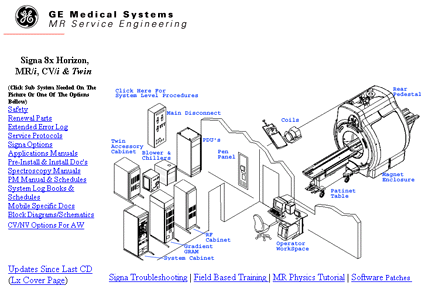
Service documents are broken up by subsystem or System Level Procedures. click on the subsystem in the picture on the right you wish to access or any of the categories on the left. To exit the CD. Just close the web browser.
Some of the subsystem groups are broken further into cabinet types. And example. When entering the RF subsystem you will be given a choice of RF/PEN 1, RF/PEN 2, RF/PDU 1.0T or RF/PDU 1.5T procedures. Pictures are shown for each cabinet type in the event the user is not familiar with the RF choices and can match what is on the CD with the one on site.
PC Based MR Service Tools can be loaded from this CD. The Tools available are:
Report Manager - PCReport replacement. This tool must be used for Signa
8x systems.
MR Image - Used to view MR Raw data Files.
Erbtec Power Monitor tool - Used to setup Erbtec RF AMP Power Monitor.
Two Viewers, Grafidy3 and HSS. These tools are to view data files on the
PC.
Each tool has it's own installer. This allows the use to pick and choose which software to load. To load any of the tools, insert the 2160623 CD into the PC's CD ROM drive. Using Windows explorer to open the MRTools directory. Each tool has it's own directory in which is found a setup executable. Double click "setup.exe" to load the tool.
The CD contains a new troubleshooting aid. This EPST provides information on
the different types of artifacts that may appear in the images produced by the
MR systems. MR Troubleshooting EPST.